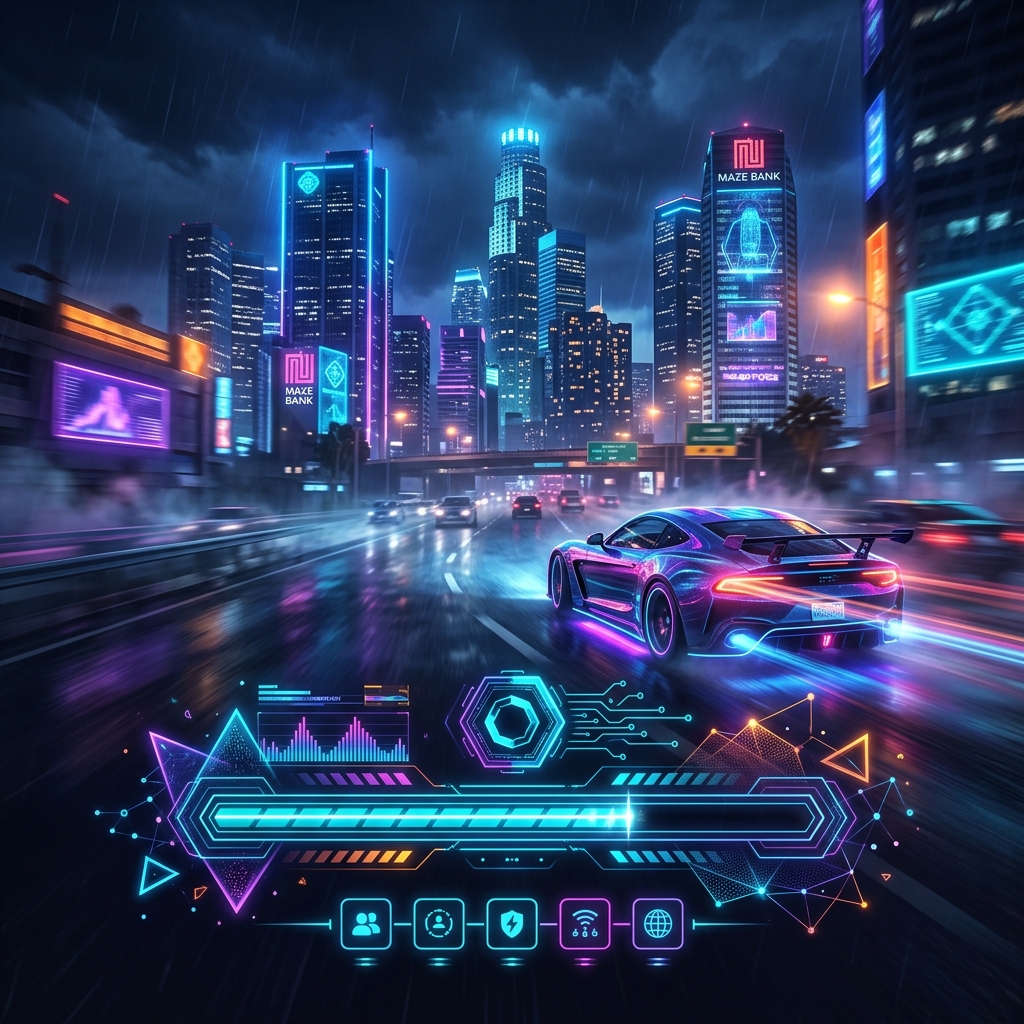
A static loading screen with a flat image can make your GTA RP server feel outdated. To create an immersive experience that gets players excited while they wait in queue, you need an animated interface. In this guide, we will explore the ultimate animated FiveM loading screen template of 2026 and show you how to set it up without touching a line of code.
Why Choose an Animated Loading Screen?
Animated loading screens significantly improve the aesthetic quality of your server entry. By combining micro-animations, glowing cyber matrices, smooth fade transitions, and cinematic video loops, you can:
- Create a professional brand identity that matches top-tier communities.
- Make waiting in queues feel faster and more visually interesting.
- Highlight important server information with animated tabs.
- Establish your server's atmosphere before players even load in.
Features of the Ultimate Animated Template
The ultimate template (like the Vice Neon or Cyber Pulse styles on ViceForge) incorporates several vital elements:
- Glowing Neon Accents: Interactive CSS grid patterns and glowing particles that respond dynamically to loading milestones.
- Cinematic Video Backgrounds: Full-screen muted YouTube or custom MP4 video streams that play in the background, overlaid with scanline filters to ensure readability.
- Audio Player Widget: An animated sound wave visualizer and music controller that lets players play, pause, or adjust the volume of your background tracks.
- Interactive Guidelines Tabs: Smooth sliding panels that let players browse server rules, staff lists, and keyboard keybind configurations.
How to Deploy Your Animated Loading Screen
Instead of downloading complex code packages, fighting with CSS animations, and troubleshooting script dependencies, you can customize and compile the ultimate template visually:
- Go to the ViceForge Builder and select a preset design like Vice Neon Vibe or Cyber Pulse.
- Upload your community logo and configure your server title, colors, and layout guidelines.
- Go to the background settings tab, select "YouTube Video", paste a clip URL of your server's best moments, and select your scanline overlays.
- Add your server rules and configure your background audio track.
- Export the resource ZIP, extract it into your server's
resources/folder, and addensure your-resource-namein yourserver.cfg.