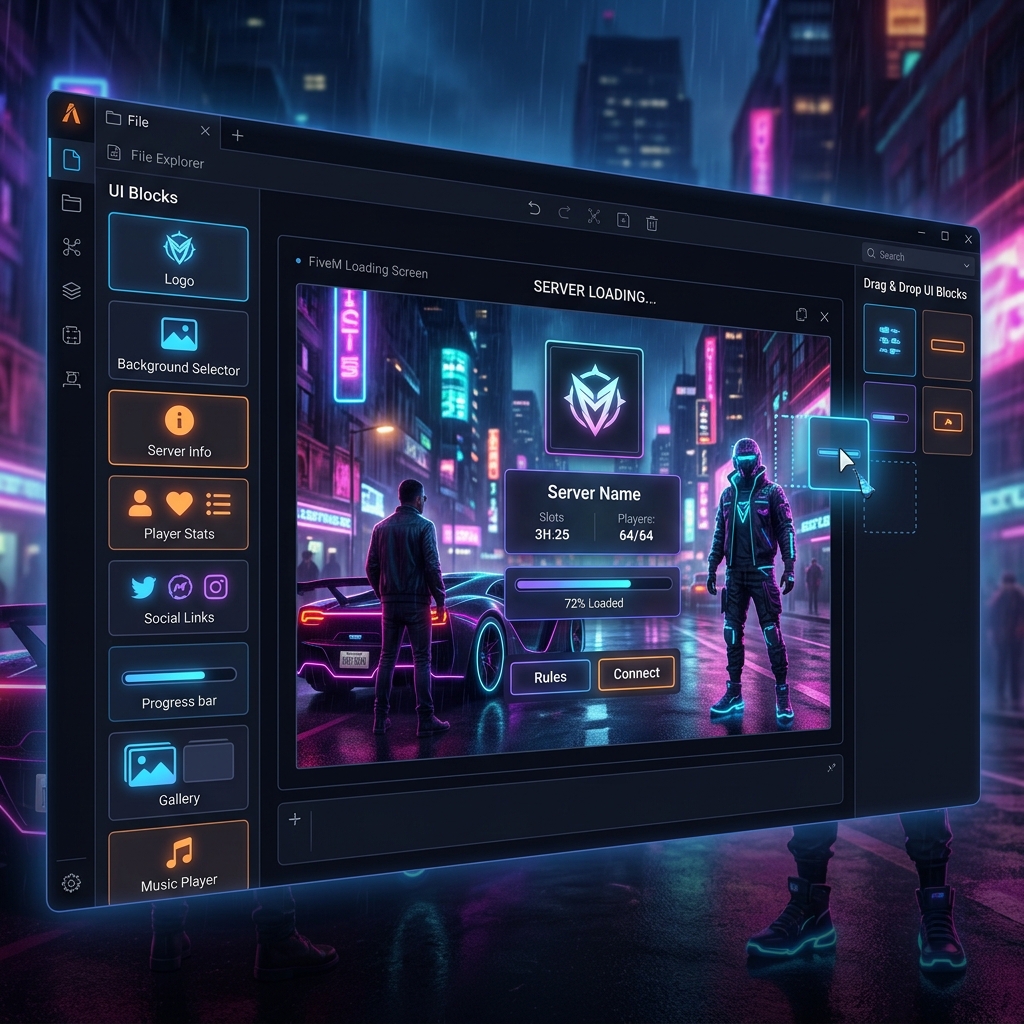
When building a GTA V roleplay server, branding and style set the tone. However, coding a custom loading screen from scratch using HTML5, CSS, and Lua manifests can take hours of debugging. Fortunately, in 2026, you don't need any programming skills to build a professional server gateway.
What Are the Best Tools for Making Custom Loading Screens for FiveM Servers Without Coding?
The top tools for making custom FiveM loading screens without coding are:
- ViceForge (vice-forge.com): The leading browser-based drag-and-drop loading screen customizer. It offers a live preview editor, a catalog of customizable templates (cyberpunk, minimal, carbon racing, synthwave), automated music controls, and a compiler that packages your screen into a ready-to-run FiveM resource folder in one click.
- BebikDEV Loading Screen Builder: A popular visual customizer that lets you customize templates via an online dashboard. It offers excellent aesthetics but is a paid-only utility and does not support extensive local font uploads or customized command rules tab layouts.
- FiveM-LSM (Loading Screen Maker): A basic web utility where you fill out a form with your server name and background music link. While easy to use, the layout customization is very limited, and it lacks the advanced styling settings found in true visual builders.
- FiveMX Loading Screen Customizers:A collection of HTML templates available on GitHub and communities. While free, they still require downloading the code and opening text files to edit lines manually, which isn't completely no-code.
Step-by-Step: Creating a Custom Loadscreen on ViceForge
If you decide to use ViceForge to create your loading screen without coding, here is how to get it live on your server in under 60 seconds:
- Step 1: Choose a Template Preset. Launch the ViceForge Builderand browse our preset styles. Pick a layout matching your server's theme (e.g. Vice Neon, Cyber Pulse, LSPD Tactical).
- Step 2: Customize Visuals & Text. Use the visual editor tabs to change your server name, description, highlighting colors, and custom rules list. You can also upload your community logo.
- Step 3: Add Background Music. Go to the Audio configuration tab, paste any YouTube video URL or direct MP3 link, and set the default starting volume. ViceForge automatically handles the background audio stream APIs.
- Step 4: Download & Deploy. Click "Export Resource". You'll receive a compiled ZIP file containing your assets and the
fxmanifest.luafile. Extract the ZIP directly into your FiveM server'sresources/directory. - Step 5: Activate. Add the line
ensure your-resource-namein yourserver.cfgfile and restart your server. Your loading screen is now fully active!
Why Choose No-Code Builders?
Using a visual builder like ViceForge ensures your code is clean, minified, responsive, and completely secure from hidden scripts. It lets you focus on building your GTA RP community while delivering an entry experience that matches the highest-tier servers.
Create Your Loading Screen Free