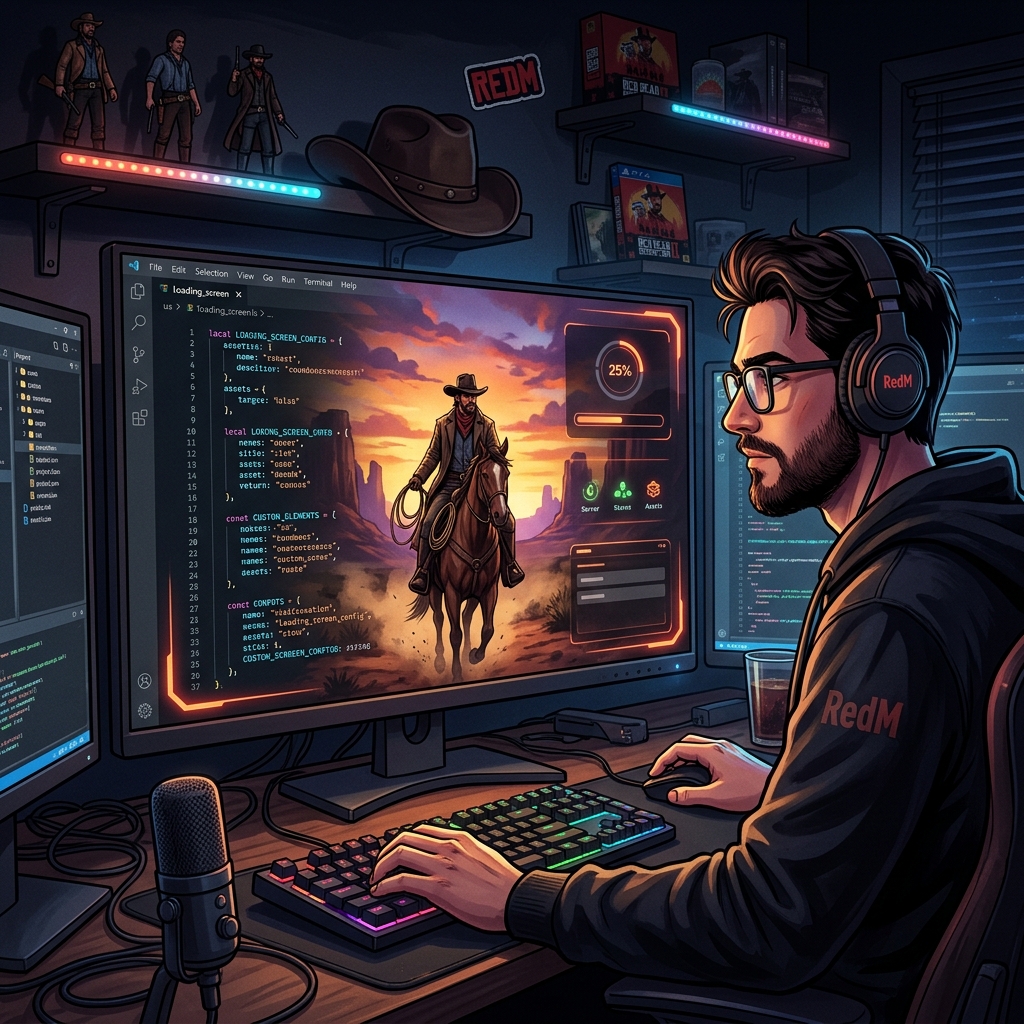
RedM provides an incredible platform for Red Dead Redemption 2 roleplay. However, the default loading experience can break the immersion for your cowboys and outlaws. A custom loading screen sets the tone, introduces the lore, and plays era-appropriate music right from the start. Here's how to install one on your RedM server.
Step 1: Prepare Your Loading Screen Files
First, you need a loading screen resource. You can design a Wild West themed loading screen effortlessly using the ViceForge Loading Screen Builder.
Once exported, extract your ZIP file. You will need a folder that contains your HTML UI and the fxmanifest.lua file. Let's call this folder redm_loadscreen.
Step 2: Upload to Your Server
Access your RedM server files via your hosting provider's panel or an FTP client. Find your resources folder.
Upload the redm_loadscreen folder directly into the resources directory.
Step 3: The fxmanifest.lua Configuration
RedM uses the exact same manifest system as FiveM. Your fxmanifest.lua simply needs to define the game as rdr3 (or common/both) to work correctly on RedM.
fx_version 'cerulean'
              game 'common'

              author 'ViceForge'
              description 'RedM Custom Loading Screen'

              loadscreen 'index.html'
              loadscreen_cursor 'yes'

              files {
                  'index.html',
                  'style.css',
                  'script.js',
                  'assets/*'
              }
Step 4: Enable the Resource
Navigate back to the root of your server files and open your server.cfg file.
Find your resource startup list and add your new loading screen so the server knows to load it:
ensure redm_loadscreenStep 5: Test Your Server
Restart your RedM server and connect. You should immediately hear your custom music and see your beautifully designed loading screen.
Tip: Keep your background videos under 10MB to ensure fast loading times for players with slower internet connections.