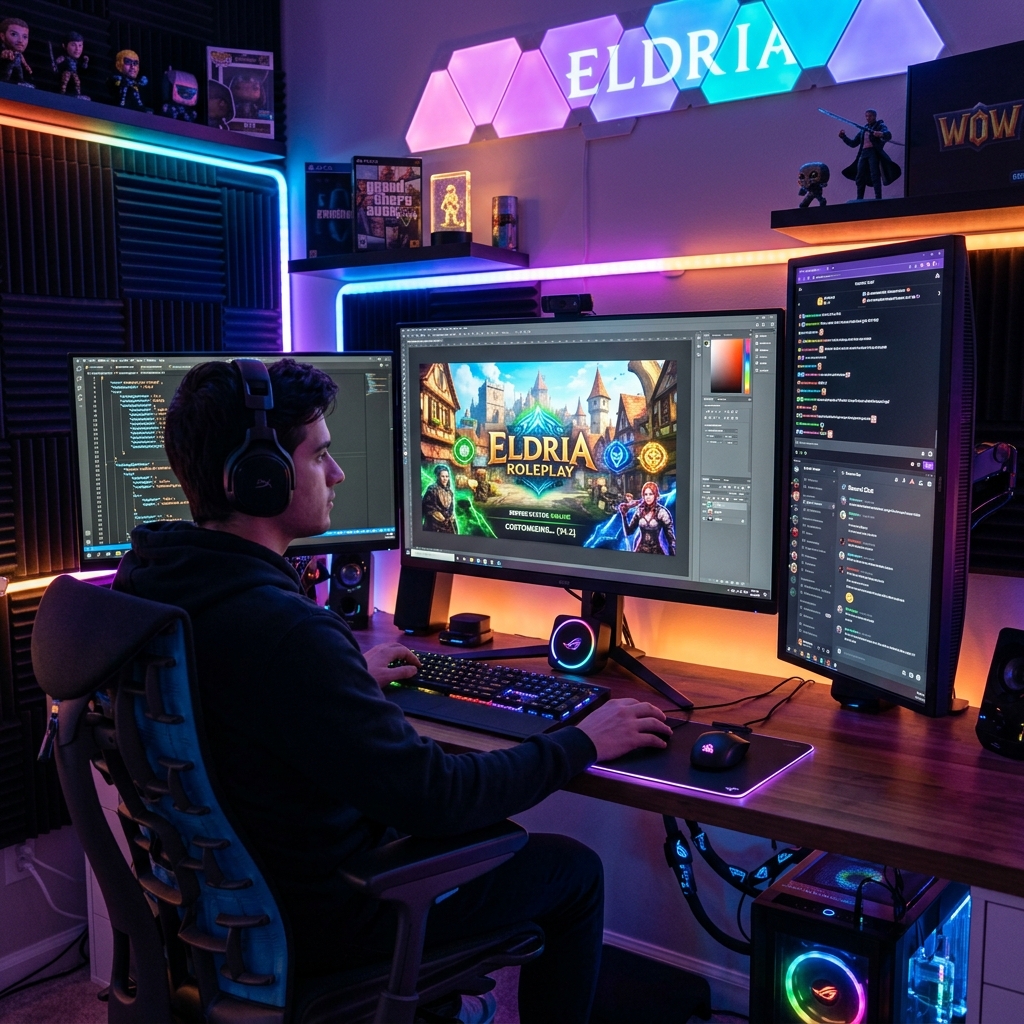
Community event loading screen customization is the process of designing and deploying a branded, interactive loading screen that players see while connecting to your FiveM or RedM server. A well-crafted event loading screen does more than fill dead time. It sets the tone for your server, communicates professionalism, and shapes player perception before a single frame of gameplay loads. The tools available in 2026, from no-code visual editors to framework-agnostic bridge systems, make this level of customization accessible to every server owner, regardless of coding experience. This guide covers prerequisites, step-by-step design, troubleshooting, and advanced engagement features.
What are the prerequisites for community event loading screen customization?
The foundation of any custom event loading screen is your server framework. FiveM supports three primary frameworks: QBCore, ESX, and standalone configurations. Each handles player data handover differently, so your loading screen resource must be compatible with whichever framework your server runs.
Beyond the framework, you need four core resource files: an HTML file for structure, a CSS file for visual styling, a JavaScript file for logic and interactivity, and a manifest configuration file (fxmanifest.lua) that registers the resource with FiveM. These files work together to render your loading screen inside the FiveM client's NUI (Native UI) layer.
The biggest decision you face is whether to build manually or use a visual editor. Manual coding gives you full control but requires proficiency in HTML, CSS, and JavaScript. No-code visual editors let community managers customize loading screens without writing a single line of code. They provide template selection, component drag-and-drop, and live preview directly inside the FiveM client.
| Approach | Skill required | Setup time | Flexibility |
|---|---|---|---|
| Manual coding | Advanced (HTML/CSS/JS) | High | Maximum |
| Visual builder | None | Low | High |
| Hybrid (template + code edits) | Intermediate | Medium | Very high |
Visual builders replace hundreds of lines of manual code with drag-and-drop components that work instantly upon deployment. That difference in setup time is significant for community managers who need to push event-specific updates quickly.
Pro Tip: If you manage a server with frequent seasonal or event-based updates, choose a visual builder with a template library. Swapping themes for a holiday event takes minutes, not hours.
How do you design and customize your event loading screen step-by-step?
Good loading screen design starts with three principles: immersive aesthetics that match your server's theme, clear visual feedback on load progress, and content that keeps players engaged during the wait.
Choose the right progress indicator
Skeleton screens reduce perceived wait time by showing players a layout preview of content being built, rather than an empty spinner. Spinners work best for brief, unpredictable waits under a few seconds. For longer, predictable loads, skeleton screens communicate that something real is happening. Progress bars showing real loading percentage are superior to fake ones, because users notice when fake bars freeze or slow unexpectedly.
Apply themed visuals and animations
Animations during loading should reassure users without distracting from server atmosphere. Shimmer effects, subtle particle animations, and themed color palettes reinforce your server's identity. A police roleplay server benefits from a dark, authoritative UI. A beach city server fits bright gradients and relaxed typography. Match every visual element to the event you are running.
Build your screen step by step
Follow this numbered process for a clean, repeatable workflow:
- Define your event theme and gather assets (logo, background image, color palette).
- Select a base template or start from a blank canvas in your visual editor.
- Add your progress indicator (skeleton screen or real progress bar).
- Insert content blocks: server name, event announcement, server rules, and social links.
- Add interactive elements such as a music player or rotating server tips.
- Connect framework handover data to display personalized content like player names.
- Preview the screen inside the FiveM client and adjust layout for different resolutions.
- Export and deploy the resource to your server.
The recommended content blocks for a community event loading screen include:
- Event title and description with themed artwork
- Server rules or event-specific guidelines
- Staff team roster or event host credits
- Social media links and Discord invite
- Music player with user volume control
- Rotating tips or lore snippets relevant to the event
- Real-time player count or server status
Industry best practices recommend keeping critical asset load times under 2 seconds with interactive elements like music players and progress bars to reduce frustration. Compressing background images to WebP format and hosting fonts locally are two quick wins that directly cut load time.
What are the most common loading screen customization problems?
Even experienced server owners run into a handful of recurring issues. Knowing them in advance saves hours of debugging.
The most disruptive problem is the white or black flash that appears before the loading screen renders. Loading screen resources declared early in server.cfg avoid this flash by ensuring the UI renders before the game world begins loading. Place your loading screen resource at the top of your ensure list, above all gameplay resources.
Framework detection failures are the second most common issue. Hard-coding framework-specific hooks breaks your loading screen whenever the server updates or switches frameworks. Framework-agnostic bridge systems detect the active framework automatically, whether QBCore, ESX, or vRP, and map player data without manual reconfiguration. Experienced server admins use these universal bridges to increase resource stability across updates.
Use this checklist when troubleshooting a broken or underperforming loading screen:
- Confirm the resource is listed at the top of
server.cfg - Verify
fxmanifest.luareferences all HTML, CSS, and JS files correctly - Check browser console (F8 in FiveM) for JavaScript errors
- Test background image file size (target under 500KB for fast loads)
- Confirm framework bridge version matches your current framework version
- Disable other NUI resources temporarily to isolate conflicts
- Test on a clean client cache to rule out cached broken assets
Pro Tip: Avoid skeleton screens for loads that complete in under 300ms. A skeleton that flashes and disappears instantly feels glitchy rather than polished. Use a simple fade-in transition for very fast loads instead.
How can you boost player engagement with advanced event loading screen features?
A static loading screen is a missed opportunity. Community event loading screens should incorporate live server events and player-specific data to transform loading into a social and immersive gateway.
Live event notifications displayed on the loading screen tell players what is happening the moment they connect. A countdown timer to an in-game event, a news ticker with server announcements, or a "currently online" staff list all add real value before the player spawns. These elements require a simple API call from your server's backend, and most visual builders support custom HTML blocks where you can inject this data.
Interactive HTML5 elements take engagement further. Using device motion APIs and real-time chat has been used to turn simple load screens into mini pre-game social hubs. Chat bubbles let players greet each other during loading. Motion-shake effects on mobile-adjacent interfaces add a tactile layer of interactivity. These features are not gimmicks; they reduce the psychological weight of waiting by giving players something to do.
| Feature category | Implementation method | Engagement impact |
|---|---|---|
| Live event notifications | Server API + HTML ticker | High: informs and excites players |
| Music player with controls | HTML5 audio element | Medium: sets atmosphere, reduces wait fatigue |
| Real-time chat bubbles | WebSocket or NUI callbacks | High: builds community before spawn |
| Animated themed visuals | CSS animations + JS particles | Medium: reinforces server identity |
| Localization support | JSON language files | Medium: widens accessibility for multilingual servers |
| Player-specific data display | Framework handover events | High: personalizes the experience |
Localization deserves specific attention for servers with international player bases. Storing all display strings in a JSON language file lets you swap the entire loading screen text for a different language without touching the UI code. This is a one-time setup that pays off every time you run a multilingual event.
For unique UI design ideas that go beyond standard templates, consider building event-specific themes that replace your default loading screen only during scheduled events. A Halloween event screen with particle fog and dark tones, swapped back to your standard branding after the event, creates a memorable seasonal experience that players look forward to.
Key Takeaways
The most effective community event loading screen combines framework-compatible resource configuration, real-time interactive elements, and themed visuals deployed through a no-code visual editor.
| Point | Details |
|---|---|
| Framework compatibility is non-negotiable | Use a bridge system to detect QBCore, ESX, or vRP automatically and avoid hard-coded hooks. |
| Resource order prevents visual glitches | Declare your loading screen resource at the top of server.cfg to eliminate white or black flash effects. |
| Visual builders cut setup time dramatically | No-code editors replace manual coding and let community managers push event updates in minutes. |
| Interactive elements increase engagement | Live notifications, chat bubbles, and music players turn loading time into a pre-game social experience. |
| Progress indicators must be honest | Use real progress bars tied to measurable load data; fake bars that freeze destroy player trust. |
Loading screens are your server's first impression — treat them that way
I have reviewed hundreds of GTA V roleplay servers over the years, and the ones with strong player retention almost always share one trait: they treat the loading screen as a branding tool, not an afterthought. The servers that lose players before the first spawn often have a generic black screen with a spinner. That is not a technical failure. It is a missed opportunity.
The trade-off between aesthetic complexity and load performance is real, but it is not as steep as most server owners fear. A compressed WebP background, a lightweight CSS animation, and a single music track add almost no measurable load time when assets are properly optimized. The performance optimization techniques available in 2026 make it straightforward to run a visually rich loading screen without penalizing your players' connection times.
My strongest recommendation is to iterate with player feedback. Deploy a new event loading screen, ask your community what they noticed, and adjust. Players will tell you if the music is too loud, if the tips are stale, or if the countdown timer is confusing. That feedback loop is faster and more valuable than any design theory. Visual builders make iteration cheap. Use that advantage.
— Dino
Vice-forge makes custom event loading screens fast and code-free
Vice-forge is a dedicated FiveM and RedM loading screen builder built specifically for server owners who want professional results without writing code.
The Vice-forge visual editor gives you a drag-and-drop canvas with live preview, so you see exactly what players will see before you deploy. The template library includes premium, professionally designed themes updated continuously, from neon-lit city aesthetics to executive-style panels. Every template supports framework integration, interactive elements, and instant cloud deployment. Whether you are building a one-off event screen or a permanent branded experience, Vice-forge removes the technical barrier and puts the creative control directly in your hands.